
For students
How Elaarn works for students
Pick a topic, write your working like in the exam, and get every line marked. Here is how to use the Elaarn app, step by step.
01
Choose a subject and a topic
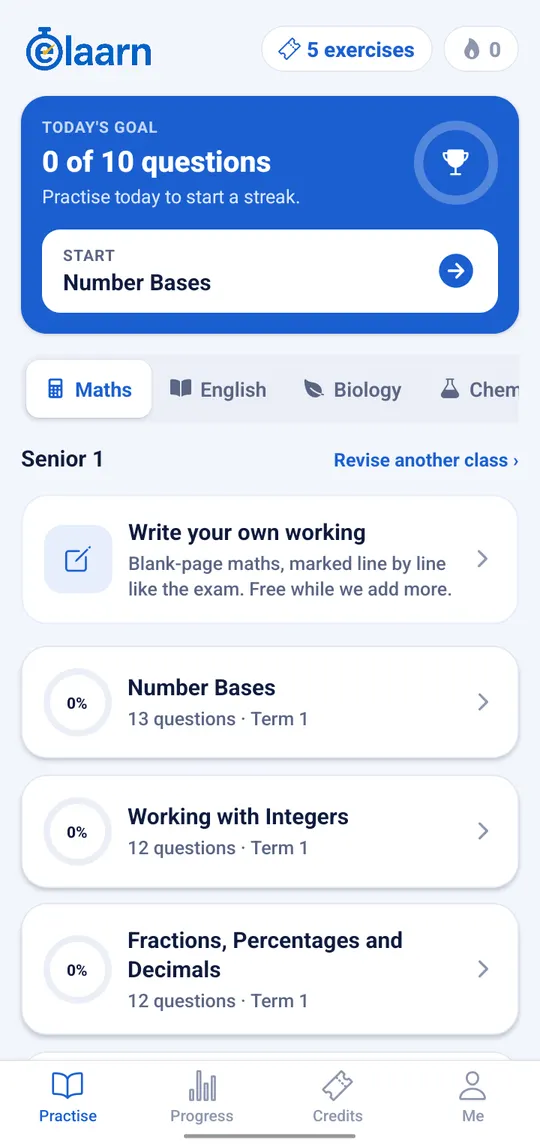
Open Elaarn, pick your subject, then a topic. Each topic shows how many questions it has.
- Today's goal counts your questions, and your streak counts the days in a row you practise.
- Revise another class lets you practise topics from a lower or higher class.
02
Write your working on a blank page
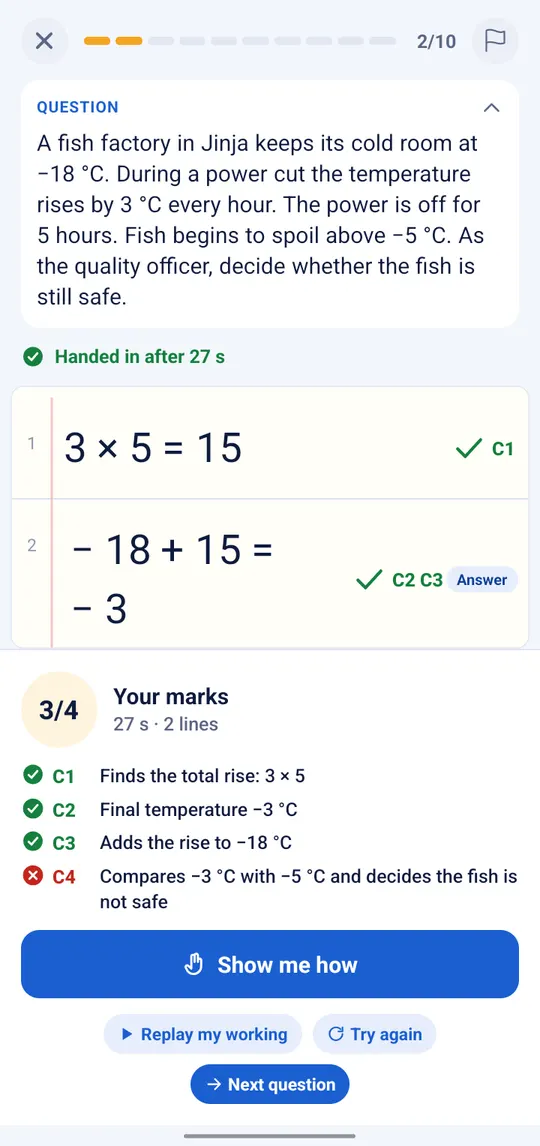
Maths questions open on a page like an exercise book. Write your working with Elaarn's maths keypad: fractions, mixed numbers, powers, number bases, square roots, and a calculator where the exam allows one.
- Tap Hand in. Like a real exam, you can't change the page afterwards.
- Every line gets a tick and its marks, such as M1 for method and A1 for the answer. Another correct method still earns the method marks.
- Show me how replays the model working step by step. Try again gives you a fresh page.
03
See exactly where it went wrong
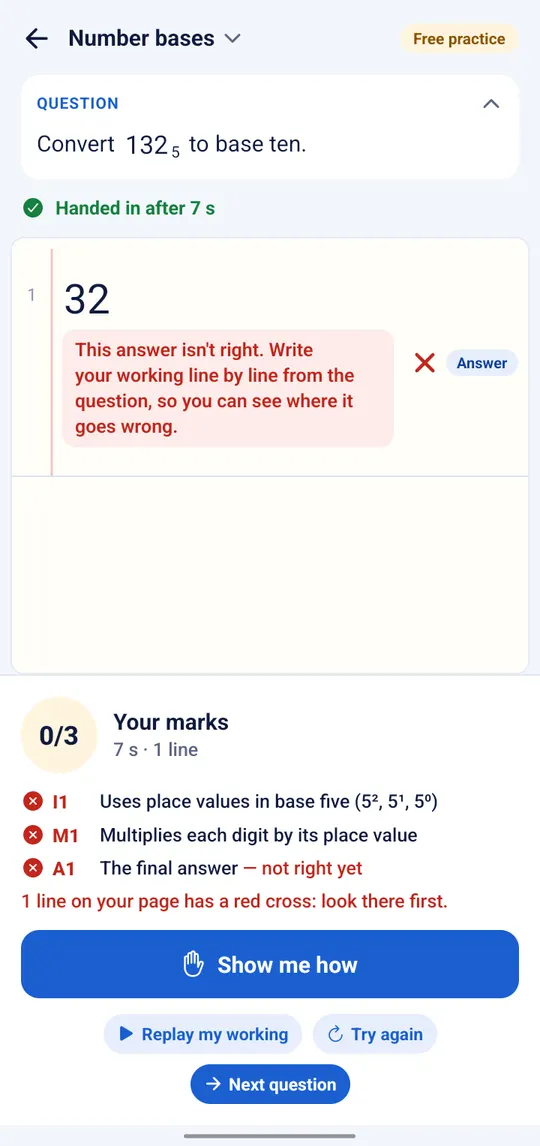
A wrong line gets a red cross and a short reason, so you know what to fix. The marks you missed are listed with what each one was for. The right answer stays hidden until you choose to see it.
04
Written answers in English and other subjects
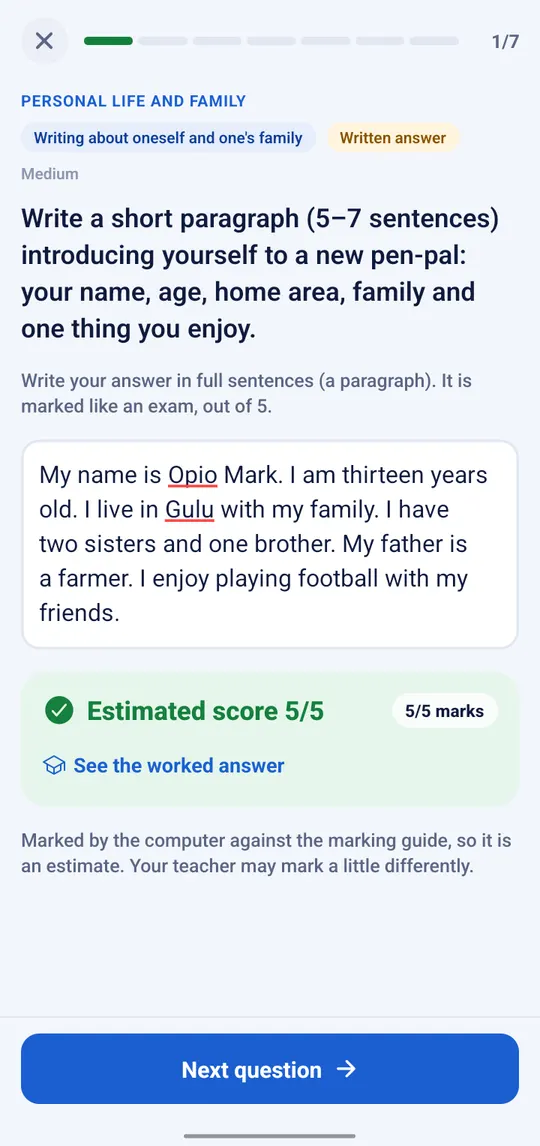
Type a few sentences or a paragraph and tap Send for marking. You get an estimated score out of the exam's marks, and what to add to earn more.
Short answers are marked by meaning, not exact words: “She is my aunt” counts for “father's sister”.
05
Find your weak spots
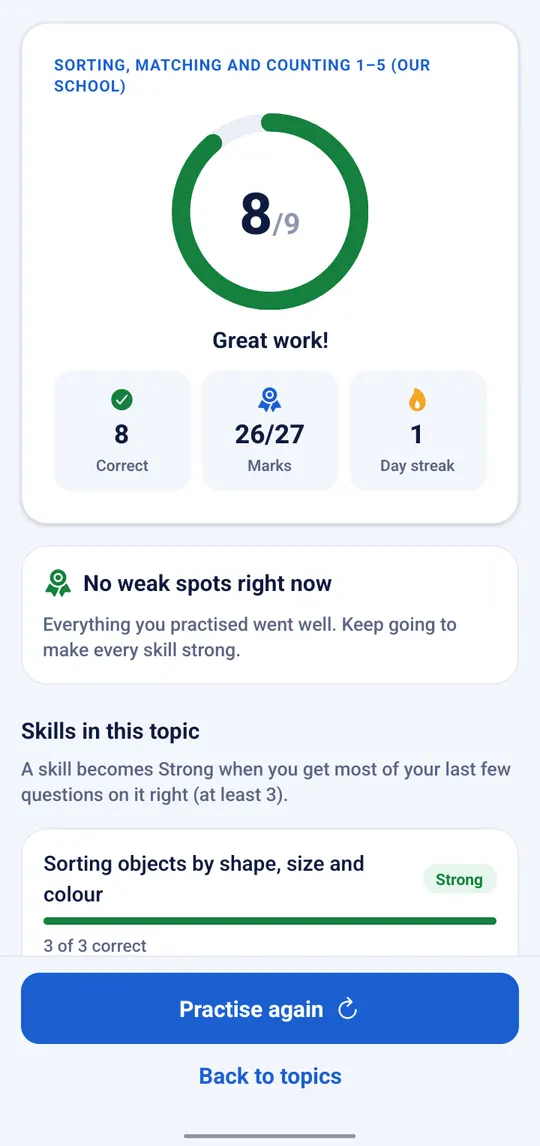
After each exercise you see your score, your marks and Your weak spots. Tap Practise my weak spots to work on exactly those.
06
Watch your progress grow
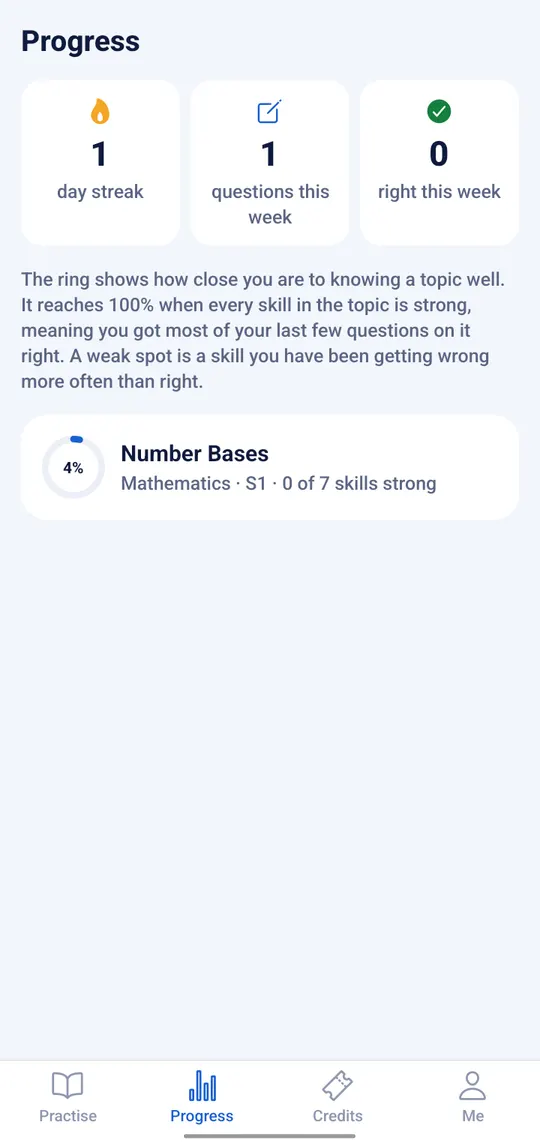
Progress shows a ring for every topic: how close you are to knowing it. You can stop an exercise at any time; your place is saved, and carrying on doesn't use another exercise.
07
Keep going without internet
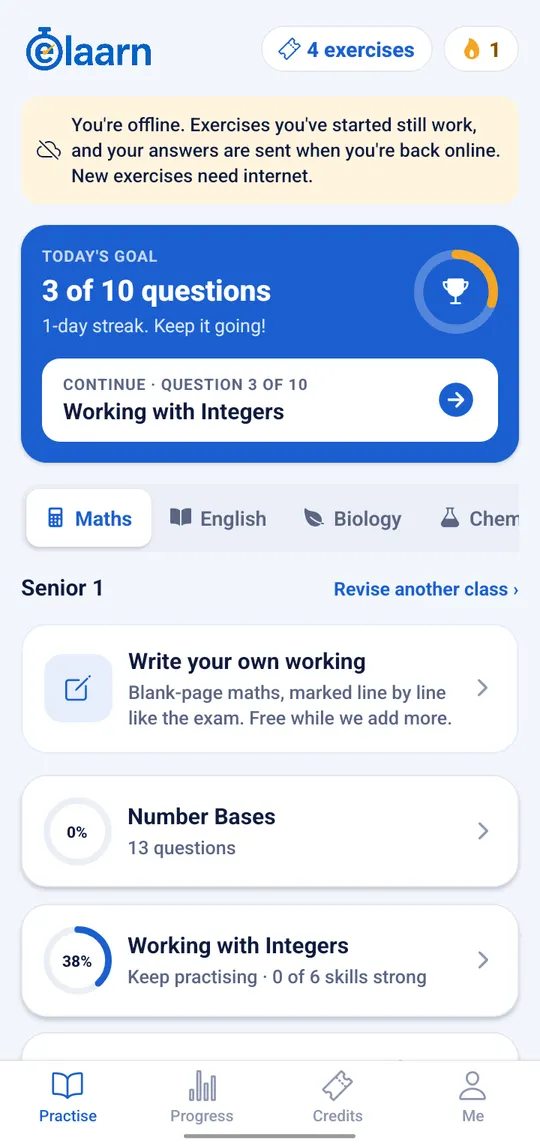
Exercises you've started keep working offline. Your answers are marked on your phone and sent when you're back online. Starting a new exercise needs internet.
08
Report a problem with a question
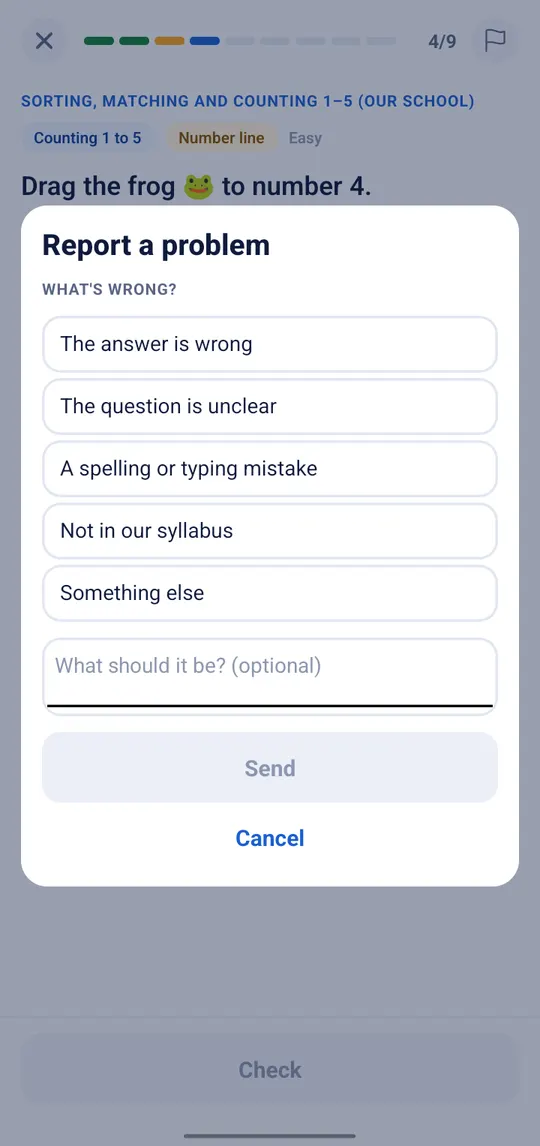
Spotted a mistake? Tap the flag on the question, pick what's wrong and send it. If the problem is confirmed, you get back the exercise you used.
After a question is marked, you can choose This question looks wrong or This mark looks wrong, if you think your answer deserved more.
Start with 5 free exercises
New students get 5 free exercises, and one more free exercise every day.
Get the Elaarn appScreens are from the Android app with test accounts. The app keeps improving, so yours may look a little different.